
Sign in with a passkey
Tabs
A passkey lets you sign in to FormCan with the same fingerprint, face or PIN you use to unlock your device. There is nothing to type and nothing that can be phished. This guide shows you how to add a passkey, sign in with it, and manage the passkeys on your account.
Passkeys are an extra way to sign in. Your password and your other sign-in methods keep working.
What is a passkey?
A passkey is a sign-in key that your device or password manager creates and keeps for you. FormCan only stores the public half of it, which is useless on its own. To sign in, your device asks for your fingerprint, face or PIN and then proves to FormCan that it holds the key. Because a passkey only works on the real FormCan site, a fake login page cannot capture it.
Before you start
You need one of the following:
- A computer, phone or tablet with a screen lock: Touch ID or Face ID on Apple devices, Windows Hello on Windows, or the screen lock on Android.
- A password manager that supports passkeys, such as iCloud Keychain, Google Password Manager, 1Password or Bitwarden.
- A hardware security key with a PIN.
Use a current version of Chrome, Edge, Safari or Firefox.
Add a passkey
-
Log in to your Dashboard.
-
In the upper right corner of the Dashboard, click on your profile photo, and choose Account Settings.
-
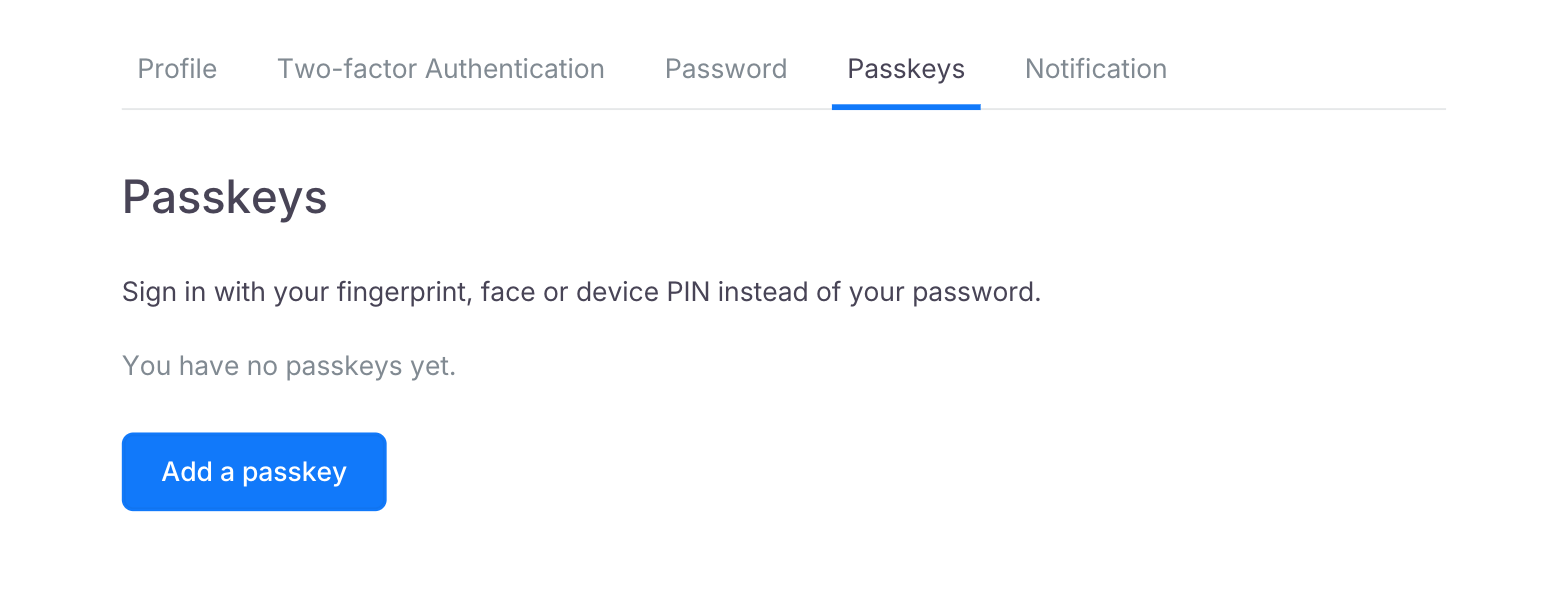
Switch to the Passkeys tab and click Add a passkey.
-
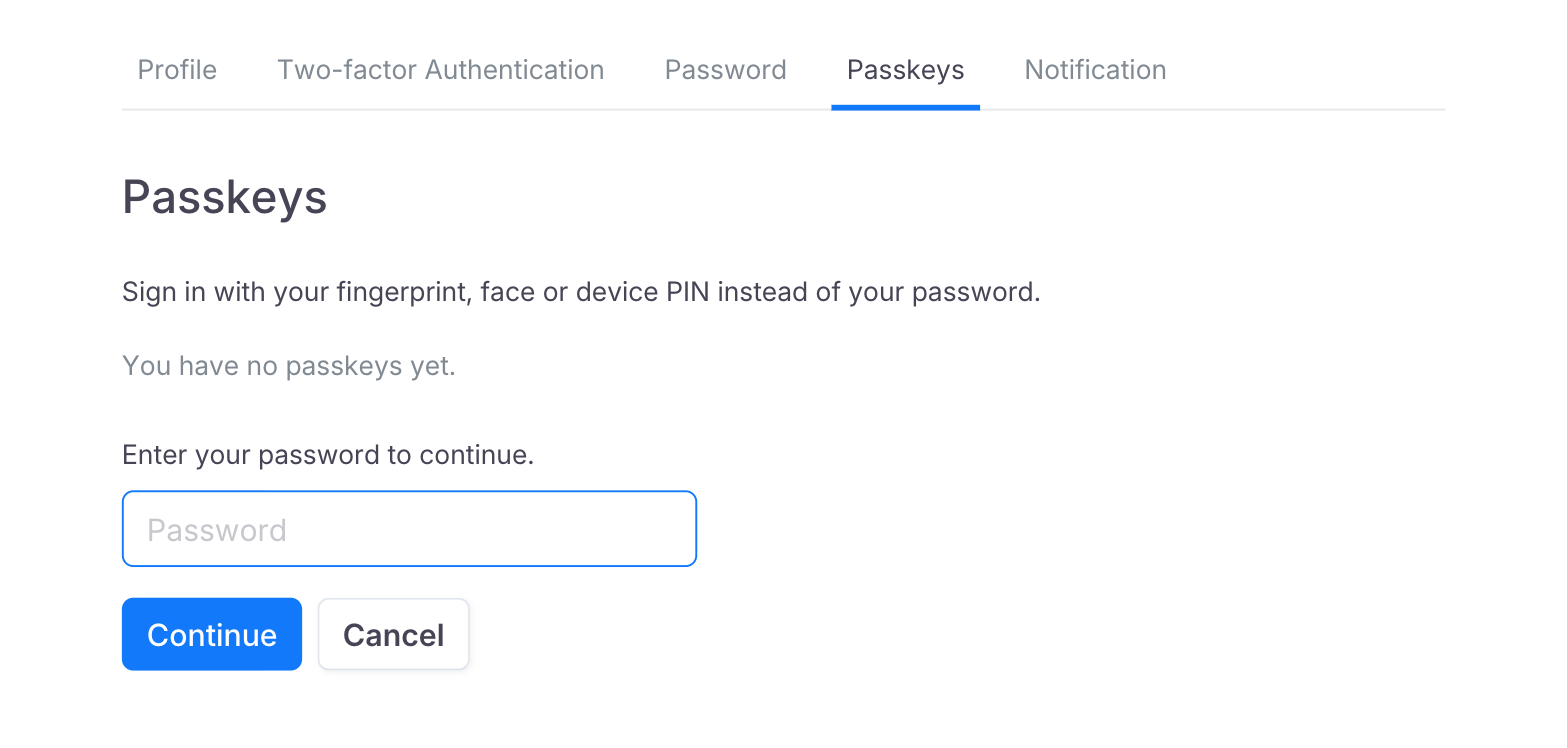
Enter your password and click Continue. If you sign in with Google, Facebook or Microsoft and have no FormCan password, enter the verification code we email you instead.
-
Your browser asks you to confirm with your fingerprint, face or PIN. Confirm, and the passkey appears in your list.
We send you an email every time a passkey is added to your account.
A passkey saved in iCloud Keychain, Google Password Manager or another password manager is marked Synced: it works on every device signed in to that account. A passkey marked This device only stays on the device that created it, so add one on each device you use. You can keep up to 10 passkeys.
Sign in with a passkey
On the login page, do either of the following:
- Click the Email field and pick your passkey from the list your browser shows.
- Click Passkey under Or continue with.
Confirm with your fingerprint, face or PIN, and you are signed in. You are not asked for your password or for a two-factor code.
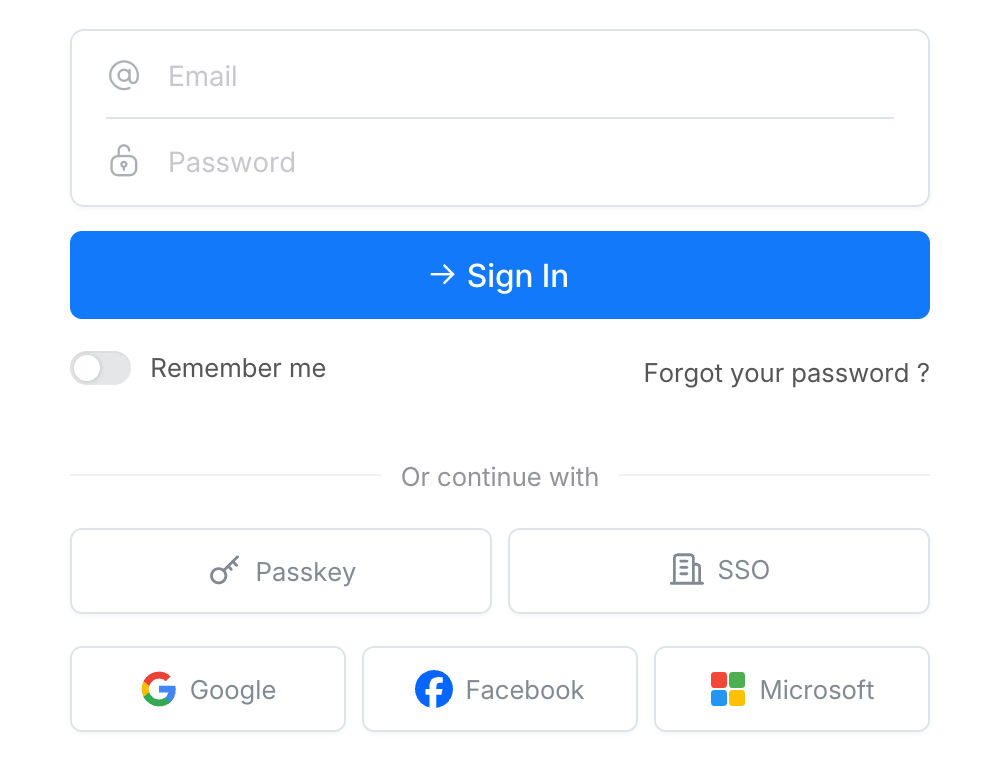
To sign in on a computer that does not hold your passkey, click Passkey, choose the option to use a phone or tablet, and scan the QR code with the phone that holds it.
Rename or remove a passkey
Open Account Settings > Passkeys.
- Click Rename, type a name that tells you which device it is, and click Save.
- Click Remove, then Remove again to confirm. The passkey can no longer sign in to FormCan, and we send you an email to confirm it.
Removing a passkey here does not delete it from your device or password manager. Delete it there as well, so it is no longer offered on the login page.
If you lose your device
Sign in with your password, or use Forgot your password ? on the login page, then remove the lost passkey in Account Settings > Passkeys. A synced passkey is still available on your other devices.
Passkeys and two-factor authentication
A passkey is already two factors in one step: the device you hold, and your fingerprint, face or PIN. When you sign in with a passkey, FormCan does not ask for a code from your authenticator app. When you sign in with your password, it still does.
If your team requires two-factor authentication, signing in with a passkey meets the requirement for that session. Signing in with your password still asks you to enable two-factor authentication until you do.
Passkeys and single sign-on
If your organization requires single sign-on, you sign in through your organization and passkeys are not available for your account. The Passkeys tab tells you when that is the case.
Unlock an idle session
On teams with HIPAA mode, FormCan locks your session after a period without activity. If you have a passkey, click Unlock with passkey on the lock screen to continue where you left off, without typing your password.
Related
- Two-factor authentication: add a code from an authenticator app to your password sign-in.
- HIPAA compliance: enabling HIPAA-compliant mode for your team.
- Single sign-on (SSO): let your team sign in through your identity provider.
- Data security and privacy: all security documentation.