Integrate with Stripe
Tabs
Two ways to collect Stripe payments
FormCan offers two ways to collect payments with Stripe:
| Stripe Checkout | Stripe Payment Widget | |
|---|---|---|
| Where payment happens | Stripe-hosted page (redirect) | Inline, inside your form |
| User experience | Leaves your form to complete payment | Stays on the form throughout |
| Apple Pay / Google Pay | Supported automatically | Supported (requires domain setup) |
| Best for | Quick setup, or when a hosted page is preferred | Seamless, single-page flows |
This page covers Stripe Checkout. To embed payment directly inside your form instead, see Stripe Payment Widget.
Stripe integration requires a premium plan. FormCan does not charge any additional transaction fees.
Set up Stripe Checkout
-
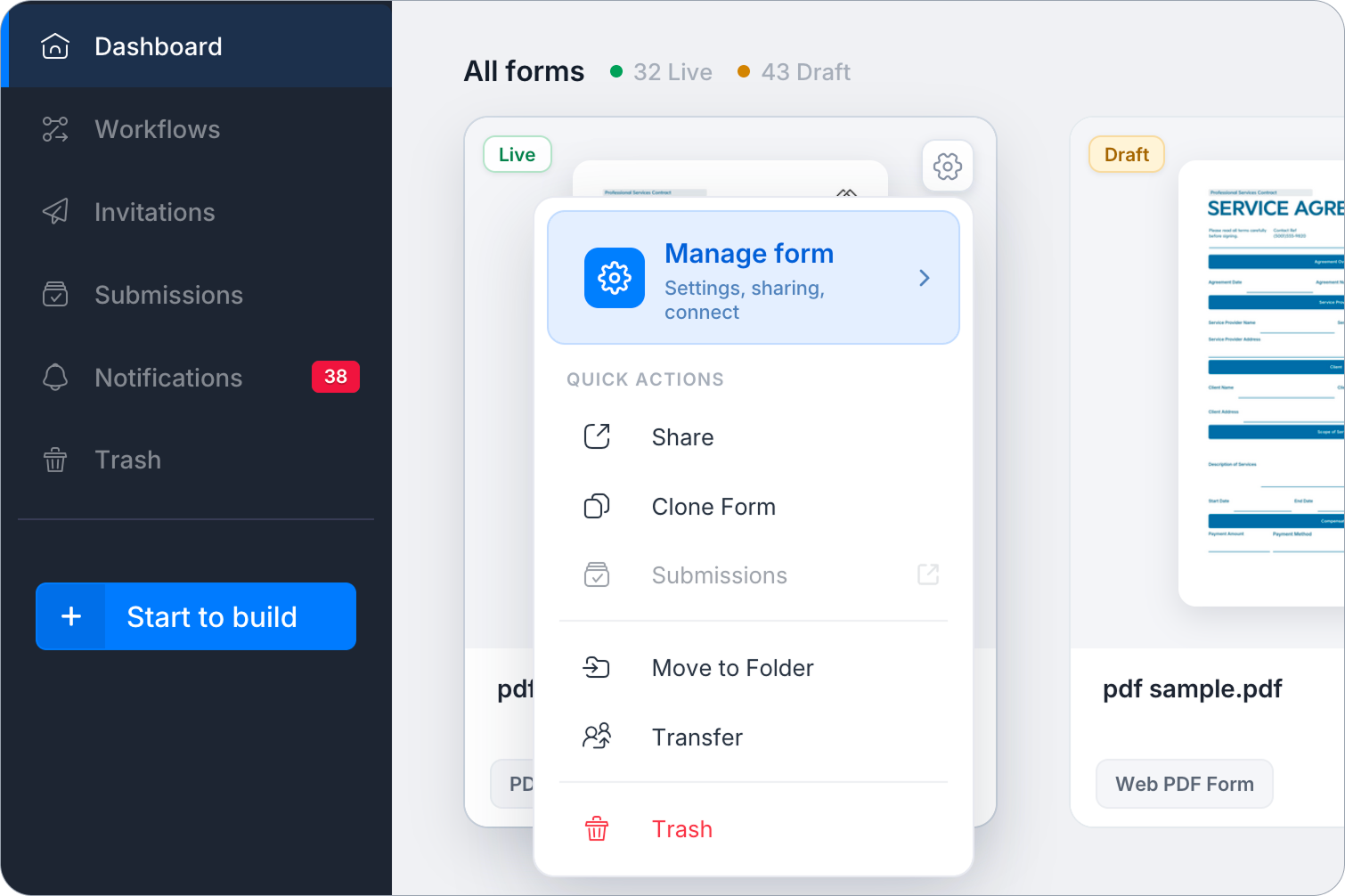
On the Dashboard, hover over the form, click the Settings (gear icon) at the top right, then click Manage Form.
-
In the left sidebar, click Integrations.
-
Find the Stripe Checkout card and click Connect.
-
Select which mode to connect:

- To preview your form, select Connect with Stripe (Test Mode). You can input a test credit card number to complete the payment. This mode will help you to verify whether the payment function is working as expected without an actual credit charge.
- For published form, select Connect with Stripe. This mode accepts the valid credit and processes the payment.
-
In the pop-up window that opens, follow the prompts to create your free Stripe account.
Use Stripe Payment widget
-
Open your form in the builder.
-
In the Widget Panel on the left, click More Widgets (three dots) > Stripe Payment (Under Enhanced Features) to add it to your form.
-
Click the widget to set:
-
Connect: Link your Stripe account for both Live and Test modes.
-
Amount: Set a Fixed Amount or select Amount from a form field to use a dynamic price (the
{{pricing}}tag in the label will show the actual amount).
-
Enable Apple Pay
To use Apple Pay, you must manually add your form domain to your Stripe account.
-
Log in to your Stripe Dashboard.
-
Go to Settings > Payment methods > Payment method domains.
-
Click Add a new domain and add your form links:
-
Live:
form.formcan.com -
Preview:
design.formcan.com -
HIPAA:
secure.formcan.com -
Custom Domain: e.g.,
myform.company.com
-
Payment process
Here’s a screenshot of the payment dialogue when you’re previewing the form:
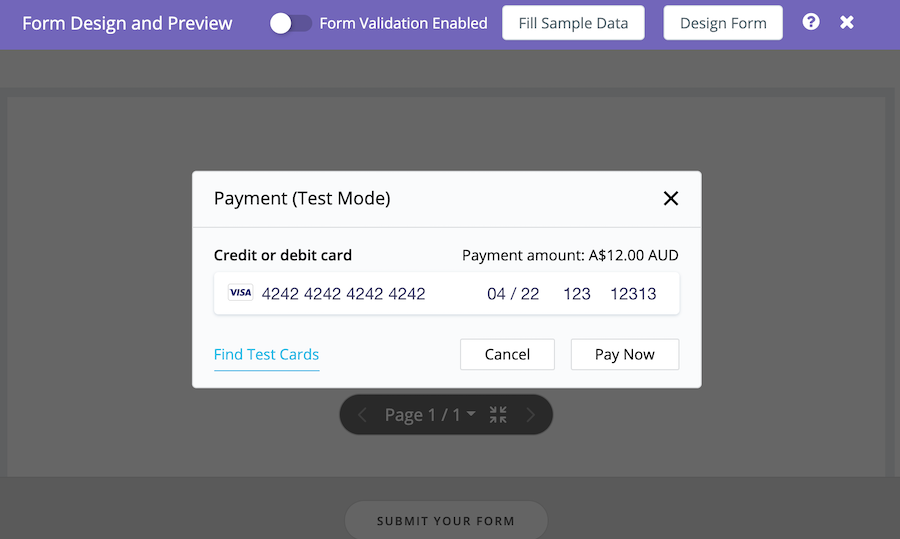
- When you’re in the preview stage: Use a test credit card for form submission.
- When you published the live form: Payment process is alike, requiring a real credit card.
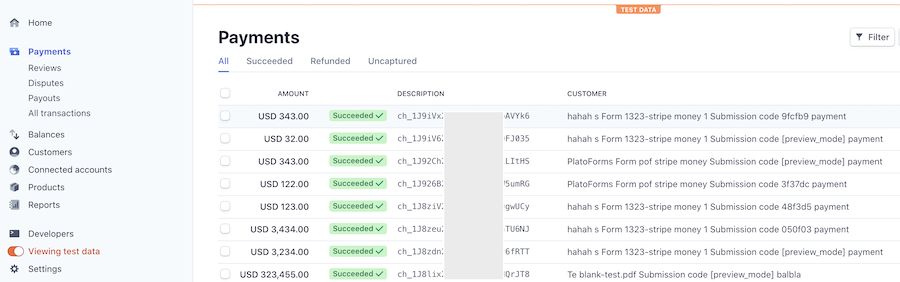
Review payments: test and live modes
- Check Stripe account: Log in to review payments.
- Distinguish test/actual payment: Toggle on/off View test data for clarity.
Customize customer info
Integration Settings: Tailor CUSTOMERS info (excluding currency code).