
Switch to Conversational Form
Tabs
Conversational is a filling mode, not a separate form type. Unlike Classic mode, which displays multiple fields together in a standard form layout, Conversational mode presents one question at a time in a guided, chat-style flow. This can make long forms easier to complete—especially on a phone. You can switch between Classic and Conversational without rebuilding the form.
Switch to Conversational Form
-
Open your form in the form builder.
-
Click Preview & Design in the top-left corner.

-
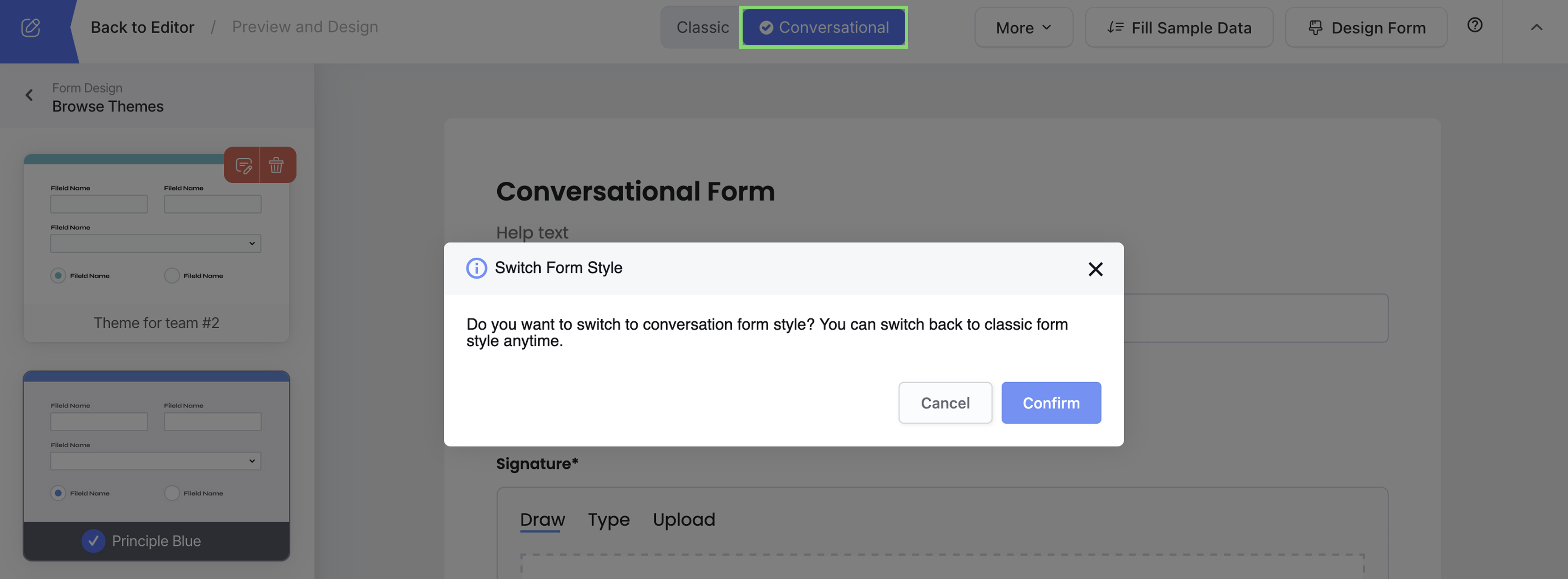
At the top of the preview, switch from Classic to Conversational.
-
Click Confirm.
The preview now presents the form one question at a time. Your fields and settings remain in the same form, so you can switch back to Classic when needed.
Ready to try Conversational mode? Open a form, then switch its filling experience in Preview & Design. Open Form Builder
Customize form design
In Preview & Design, click Design Form to open the design settings.
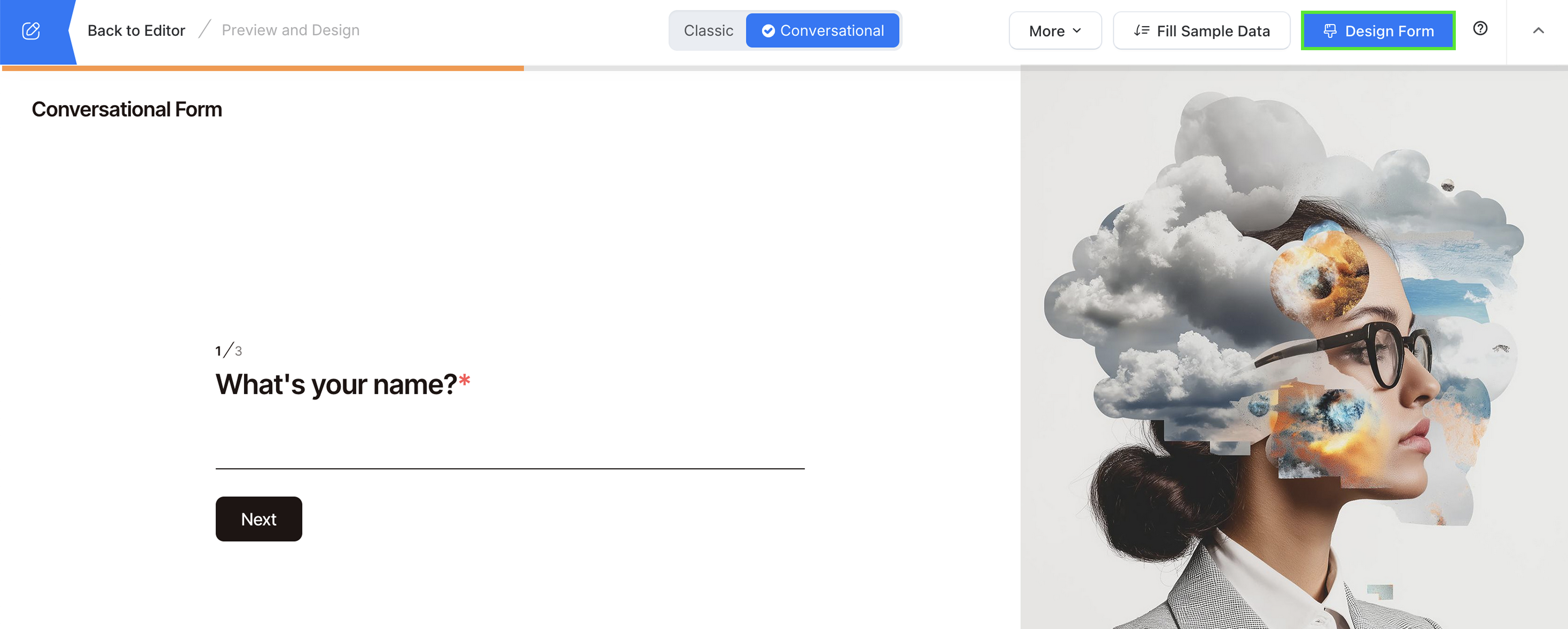
Here you can choose a theme, configure light or dark mode, add a welcome page, and control navigation.
Theme
Choose a ready-made theme, then customize its colors, fonts, and background while viewing the changes in the preview.
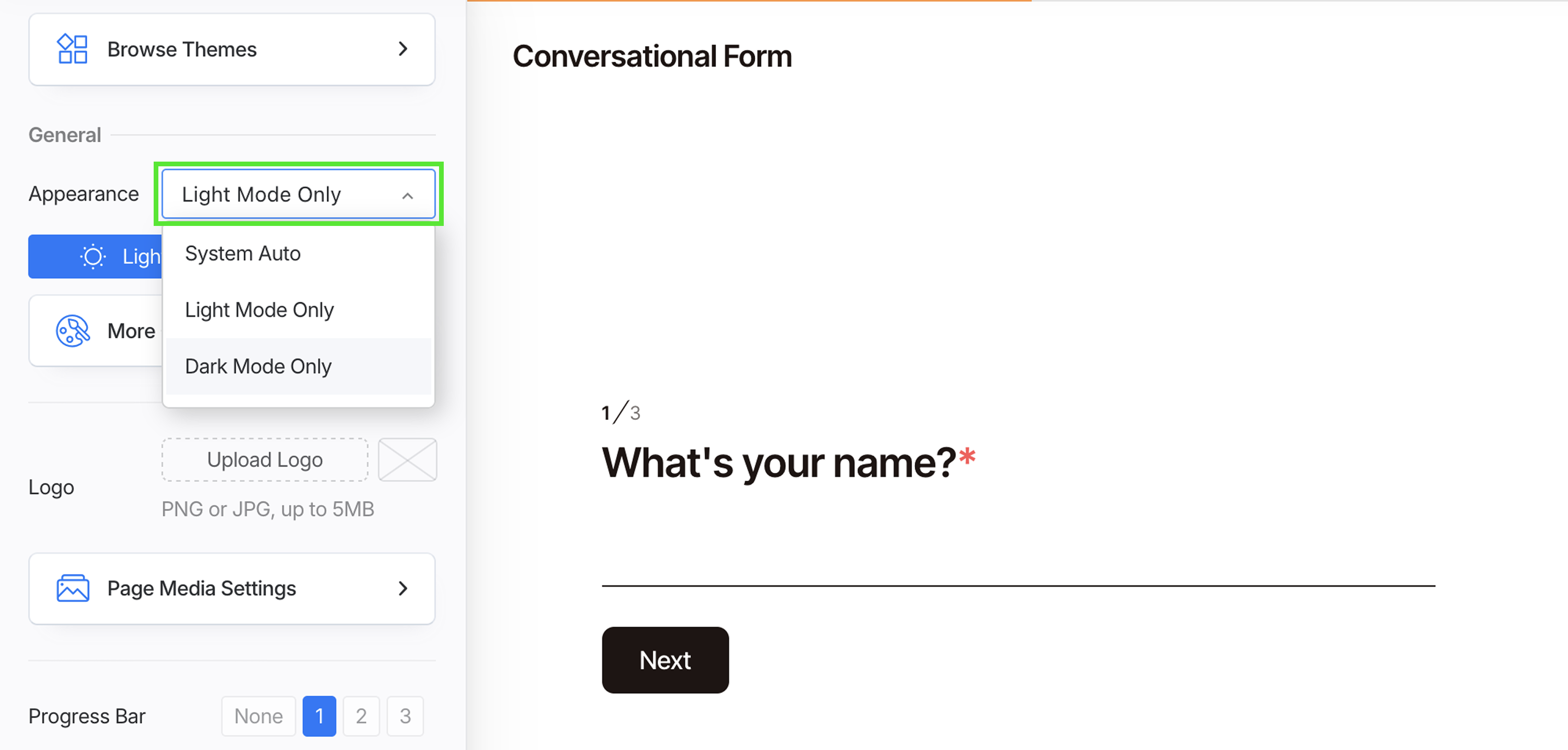
Choose how the form responds to a visitor’s display setting:
- System Auto: Follow the visitor’s device setting.
- Light Mode Only: Always use the light theme.
- Dark Mode Only: Always use the dark theme.
Welcome page
-
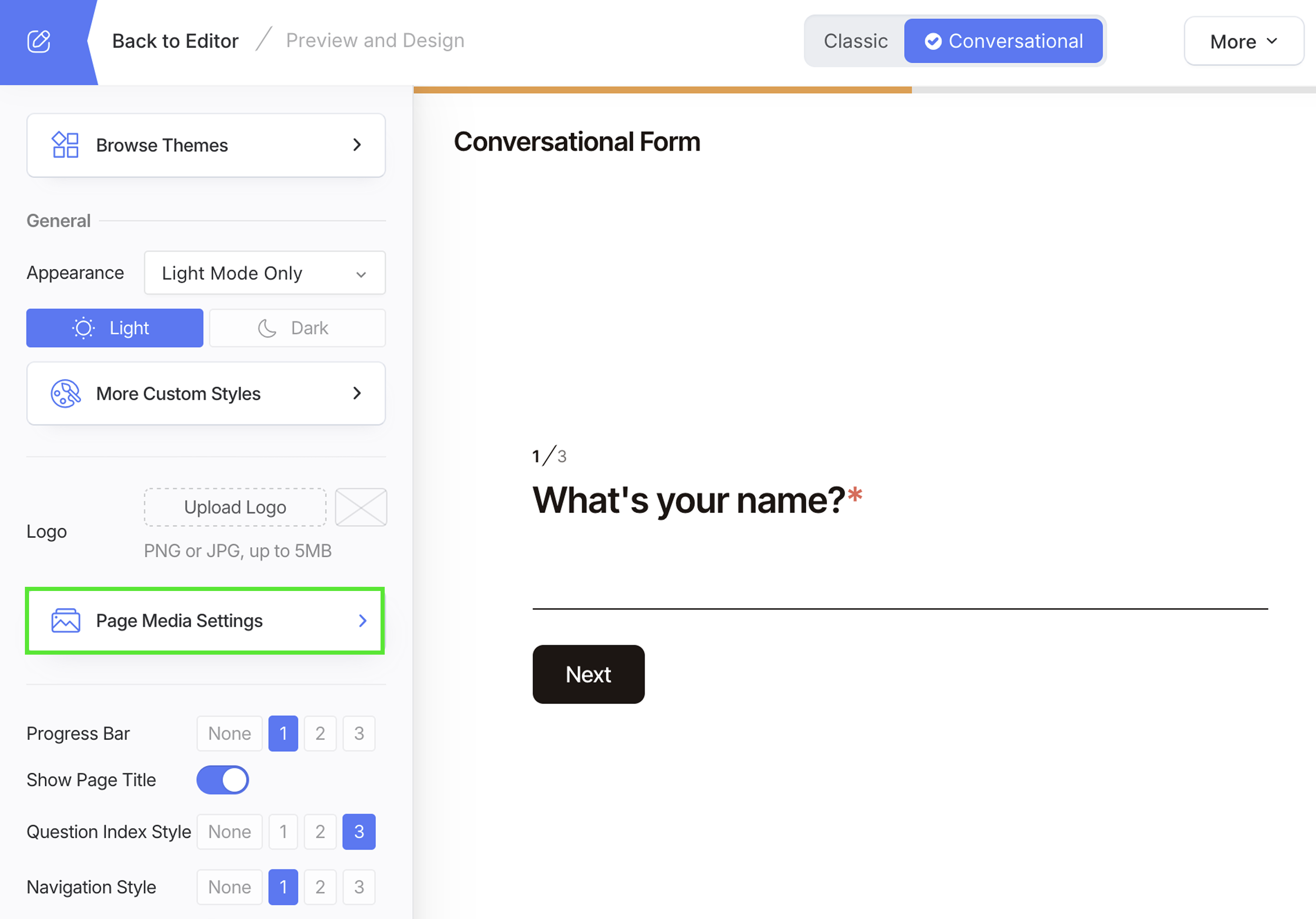
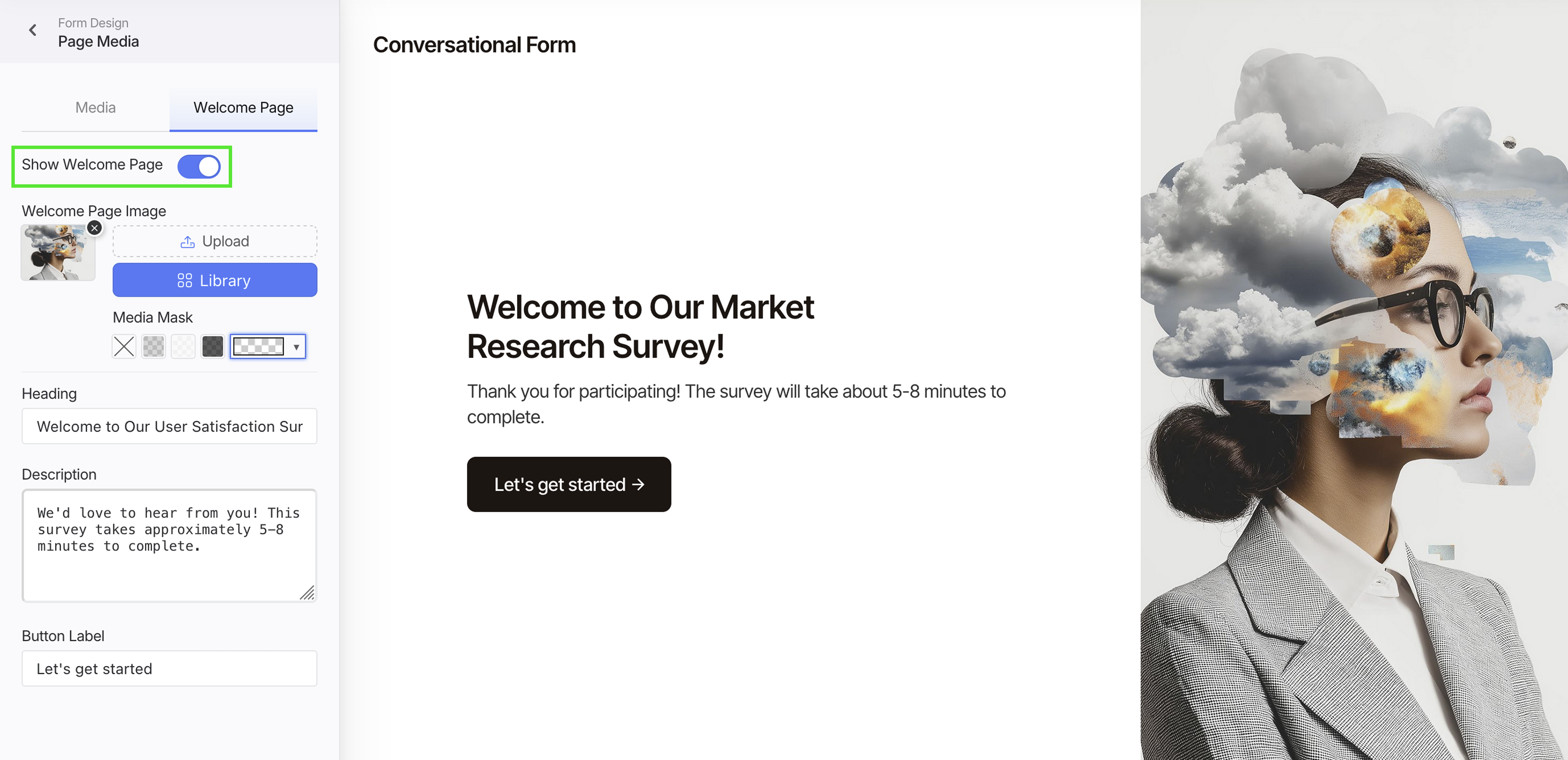
Click Page Media Settings, and switch to Welcome Page tab.
-
Toggle Show Welcome Page.
-
Customize the page:
- Add an image: Upload one or choose from the Library. A wide image usually works best.
- Improve contrast: Apply a Media Mask so the heading and description remain readable.
- Write the introduction: Add a short heading and one or two lines explaining the form’s purpose and expected completion time.
- Set the button label: Use a clear action such as Start or Let’s get started.
Free navigation
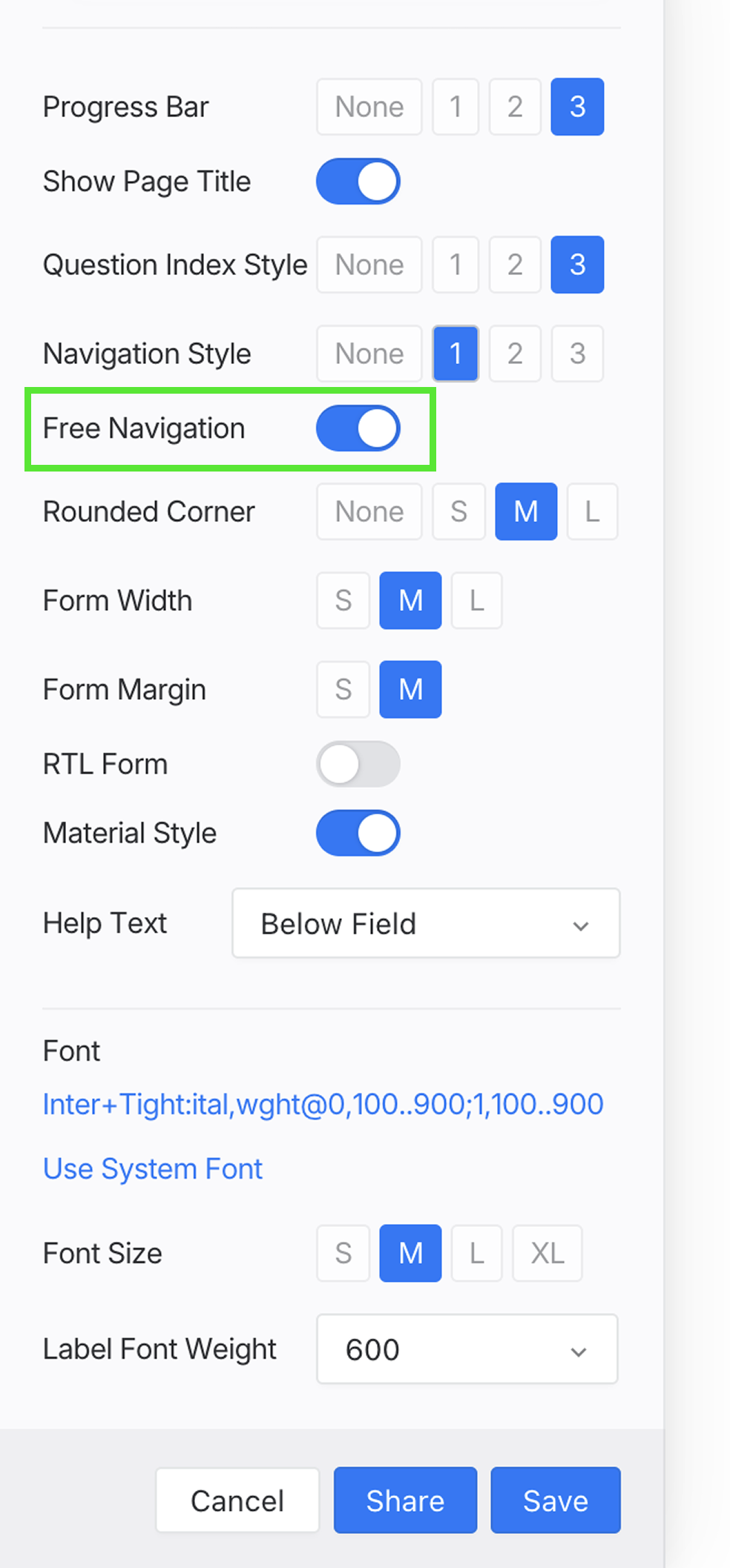
Enable Free navigation to let people move forward and backward between questions without completing each required field immediately.
When they select Submit, the form validates all required fields and returns them to anything they missed.
Add logic and supported fields
Conversational mode works with the same underlying form fields and settings. You can:
- Use conditional logic to skip or show questions based on previous answers.
- Send a prefilled form so known answers are already present.
- Enable multiple languages.
- Use grouped inputs such as Address and Repeat fields.
Preview, test, and publish
Before sharing the form:
- Preview the complete conversation on both desktop and mobile.
- Check that question order, required fields, conditional paths, and the welcome page work as expected.
- Submit a test response and review its submission data.
- Return to the builder and click Publish when the form is ready.
See Publish and share for Public URL, embed, and QR code options.
Best practices
- Keep each question and its help text concise.
- Use a welcome page to explain the purpose and expected completion time.
- Use conditional logic to hide questions that do not apply.
- Avoid unnecessary fields; one-at-a-time presentation does not make a long form shorter.
- Test both Classic and Conversational modes with your actual content before choosing one.