
Use variables in Email Body
Tabs
Dynamic variables in Email Body elevate form notifications. They add dynamic elements like form text, links, and attachment options for PDF or CSV data. With variables, you can customize notifications based on form responses.
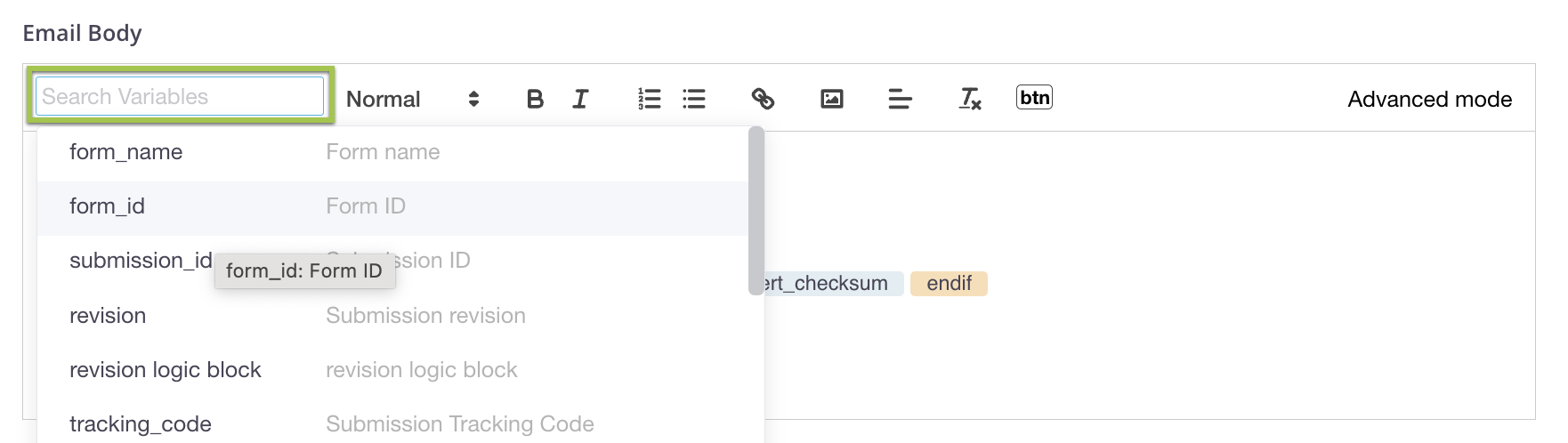
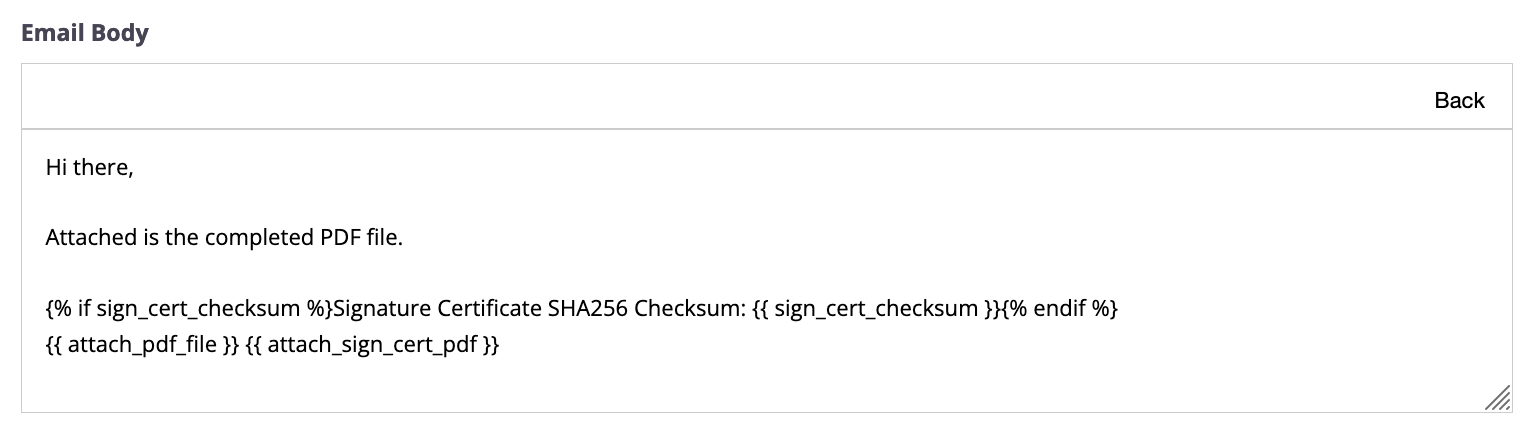
In Advanced mode, add variables in {{ }} format, such as {{attach_pdf_file}}.
Fom information
| Variables | Description |
|---|---|
form_name |
The name you set for your online form.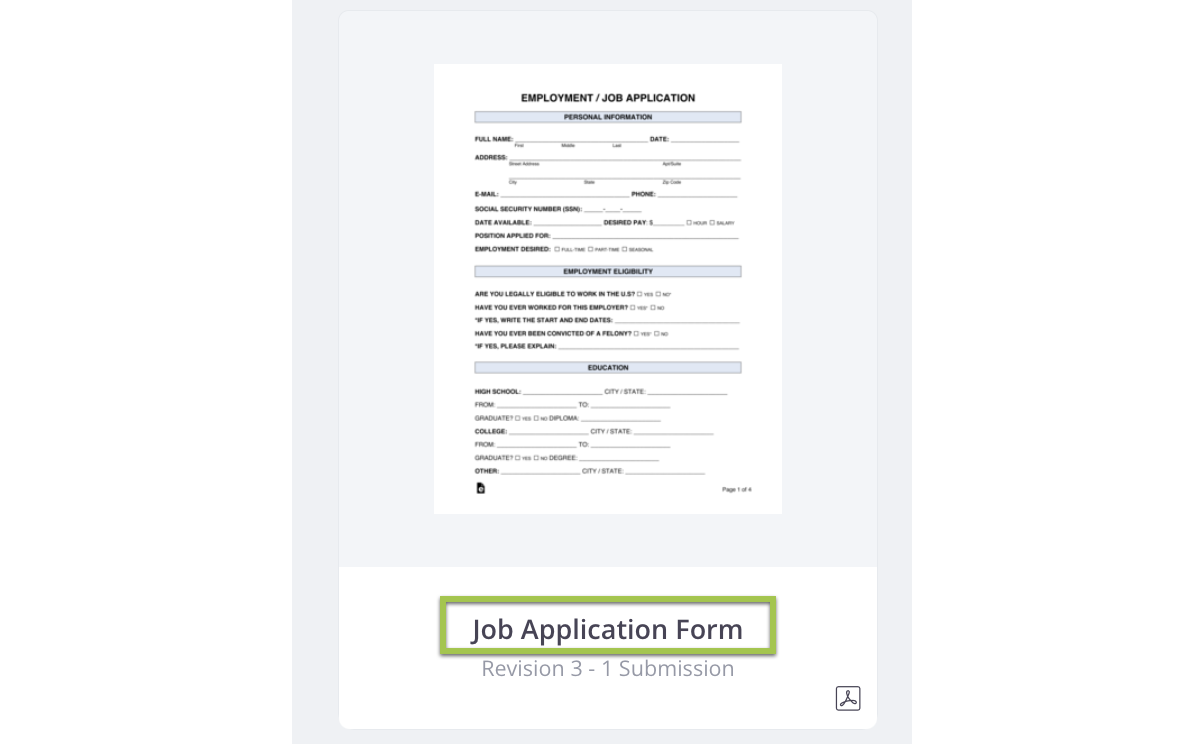
|
form_id |
A unique set of numbers and letters that identifies the form. 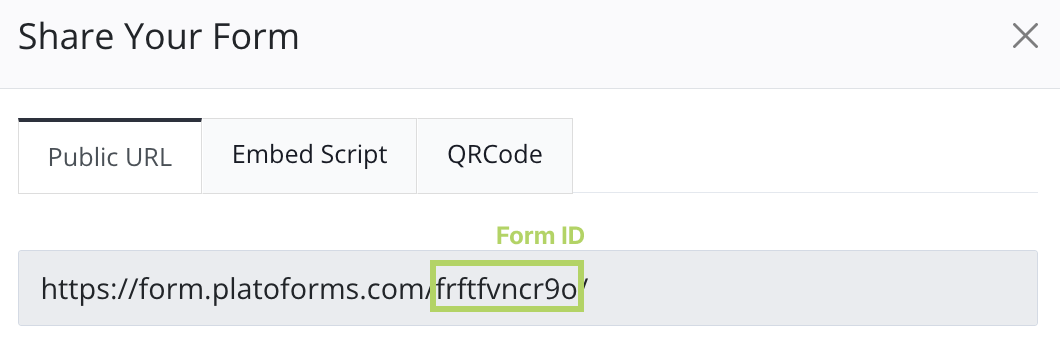
|
Form submission info and data
| Variables | Description |
|---|---|
submission_id |
A code generated when someone submits a response to your form.
|
data.fidXX |
To include specific submission data, like “Full Name” with a field ID of “3”, simply add {{data.fid3}} to your email body.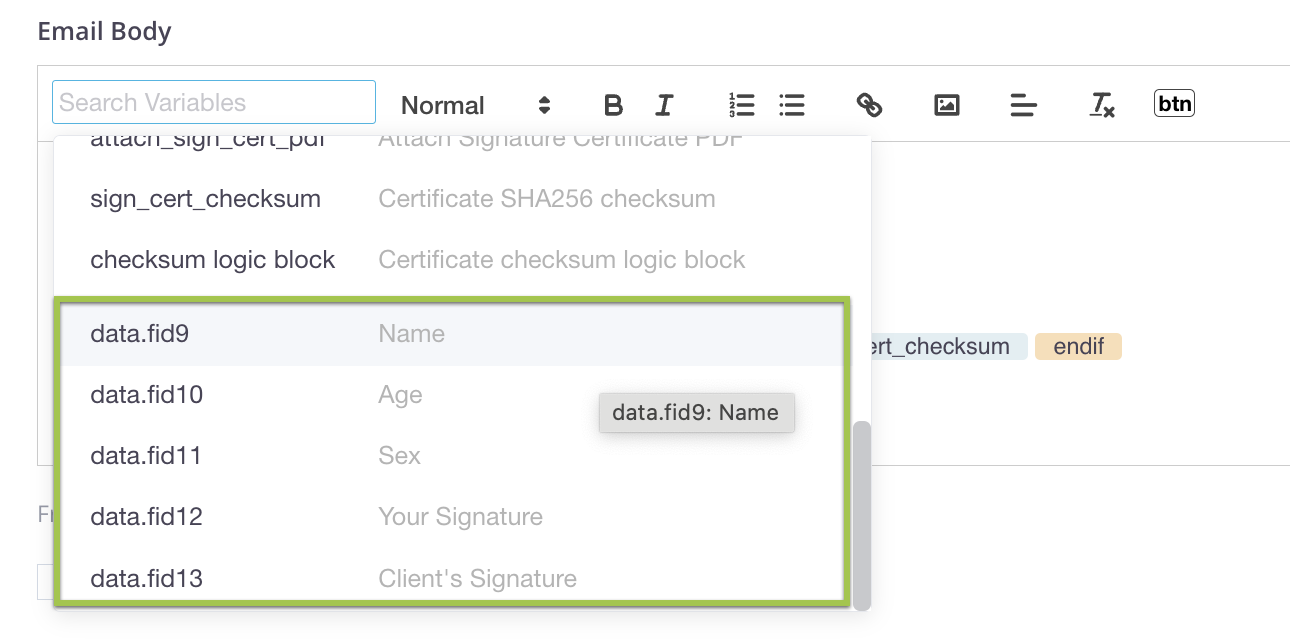
|
Shared links
Shared links are accessible to anyone online without requiring a sign-in. If your content must remain confidential, use shared links variables cautiously.
| Variables | Description |
|---|---|
shared_editor_link |
This link lets both you and respondents open and edit a submitted form. Respondents can use it to make changes and resubmit, and you’ll receive an updated PDF automatically. |
shared_attachment_link |
Use this link to download file attachments uploaded from the File Upload field. |
shared_pdf_link |
For the PDF link of the submitted data, include this custom field in your email body.
|
Attachments and fields
- Notification emails can contain created PDF files, but not files uploaded through forms.
- FormCan can send emails with a maximum size of 10MB.
- If a user uploads a file that exceeds this size limit, email sending may fail.
| Variables | Description |
|---|---|
attach_pdf_file |
Include this variable to attach a PDF file with all the collected data to your email notification. |
attach_csv_data |
Add this variable to attach the CSV data file, containing all the submitted data from a specific form, to your email notifications.
|
Customize file links and attachments
By default, variables like shared_attachment_link, shared_pdf_link and attach_pdf_file include all files. However, you can also be specific about which files you want to share or attach in the email.
-
shared_attachment_link: If your form has multiple fields for file uploads, you can add the field ID to the link to only include files uploaded through that specific field. For example,shared_attachment_link.fid4gives you the link(s) to file(s) uploaded via field #4. -
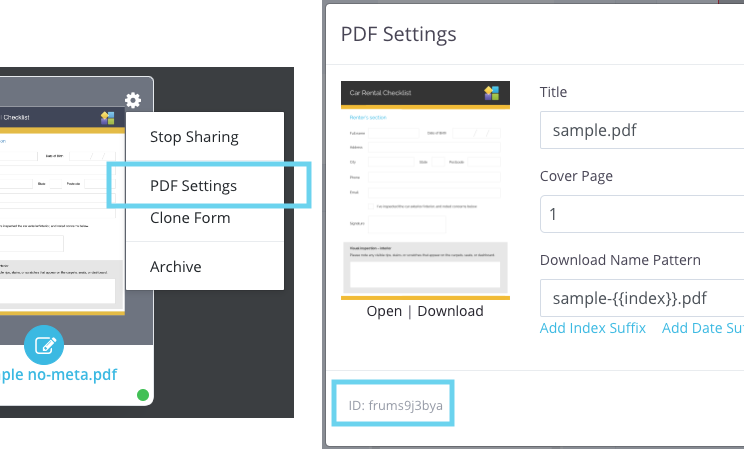
shared_pdf_linkandattach_pdf_file: With a Master form, there can be several PDF files. If you only want to share or attach certain PDF files, you can specify a PDF ID likeshared_pdf_link.frums9j3byaorattach_pdf_file.frums9j3bya. You’ll find this PDF ID in the “Name” section by clicking on the form menu on the PDF cover of that particular linked PDF.
Tracking and revisions
| Variables | Description |
|---|---|
tracking_code |
A numeric identifier for searching respondents’ submission details on the Submission page. 
|
revision |
This variable indicates the revision number, starting at 1 and increasing with each edit. It helps you track the number of times the online form has been revised. |
revision logic block |
To access the submission number after it has been re-edited with a revision greater than 1, use this variable.


|
If you only want to show revision when a submission has been re-edited and the revision number is greater than 1, you can use this logic: {% if %}...{% endif %}.
Here’s how:
{%if revision > 1 %} Revision {{revision}} {% endif %}
Certificate and Checksum
| Variables | Description |
|---|---|
attach_sign_cert_pdf |
This variable allows you to attach a Signature Certificate PDF to your email notifications. It helps verify if the signature has been altered. To receive the Signature Certificate, you must enable it in the Invitation settings.
|
sign_cert_checksum |
When using signature certificate feature, it includes the SHA256 checksum of the generated signature certificate PDF. This checksum helps confirm the authenticity of both the certificate and the document. |
checksum logic block |
If you use signature certificate and want to include the logical operation of the Signature Certificate in your email notification, you can use this custom field.
|
Workflow
If this form is part of a larger workflow, you can use these variables:
| Variables | Description |
|---|---|
is_workflow |
A signal that tells you if this submission is a step within a workflow. |
workflow_name |
The name of the workflow. |
step_ordinal_index |
The sequence number of the workflow step. |
next_step_link |
A link to the next step in the workflow, if one exists; otherwise, it’s empty. |
For instance, you can apply {% if %}...{% else %}...{% endif %} to display specific information depending on whether the submission is part of the workflow or not.
{% if is_workflow %}
    This submission is the {{step_ordinal_index}} step of the workflow {{workflow_name}}.
    {% if next_step_link %}
        You can continue the next step of this workflow by clicking this link: {{next_step_link}}
    {% else %}
        This is the final step in this workflow. No further action is required.
    {% endif %}
{% endif %}
Reference previous workflow steps
When composing emails, you can refer to variables from previous steps using “stepN.” format. Here, “N” represents the step number, starting from 1. For example, in a 3-step workflow, during the third step, you can use step1.data.fid3 to access the value from the field fid3 in the first step.
It’s not just form values that can use this format like stepN.data.fidXX, any variable can follow this “stepN.” pattern. For instance, step2.shared_attachment_link points to files uploaded in step 2, and step2.next_step_link leads to the link for opening the blank form in step 3.