
Create your first FormCan form
Tabs
This guide walks you through creating your first form—from starting a new form to publishing it and checking a test submission.
1. Start a new form
-
Log in to FormCan. If you do not have an account, create one first.
-
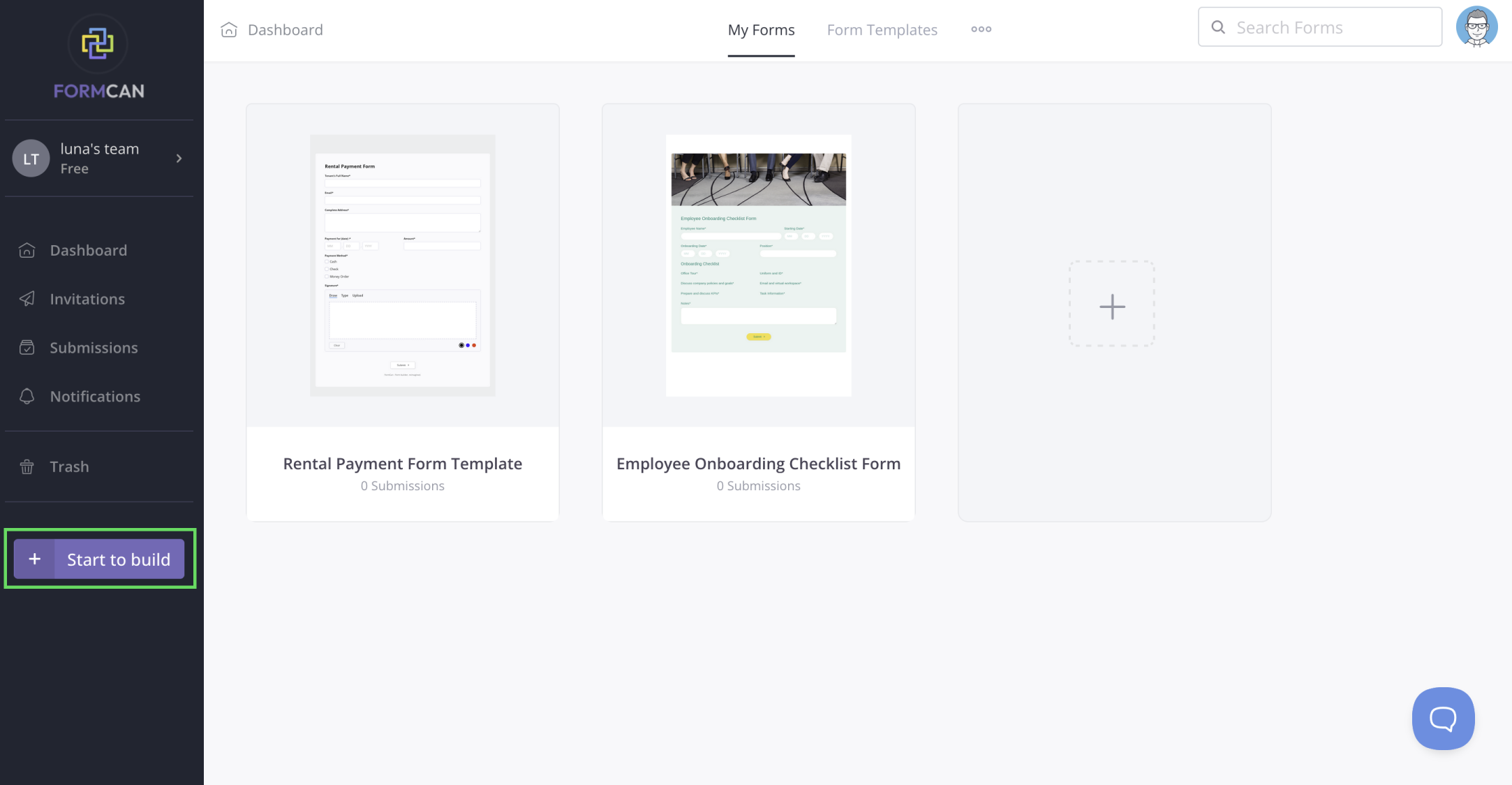
From the Dashboard, click Start to build in the bottom-left corner.
-
Choose how to start your form:
- AI chat: Describe what you want and let AI build the form. See Create forms with AI.
- Template: Start with a pre-made template and customize it. See Create a form from a template.
- Blank form: Build field by field with full control.
You can use a classic layout, with all questions visible at once, or a conversational layout that shows one question at a time.
2. Add and review the fields
In the form builder, add fields from the toolbar and arrange them in the order you need.
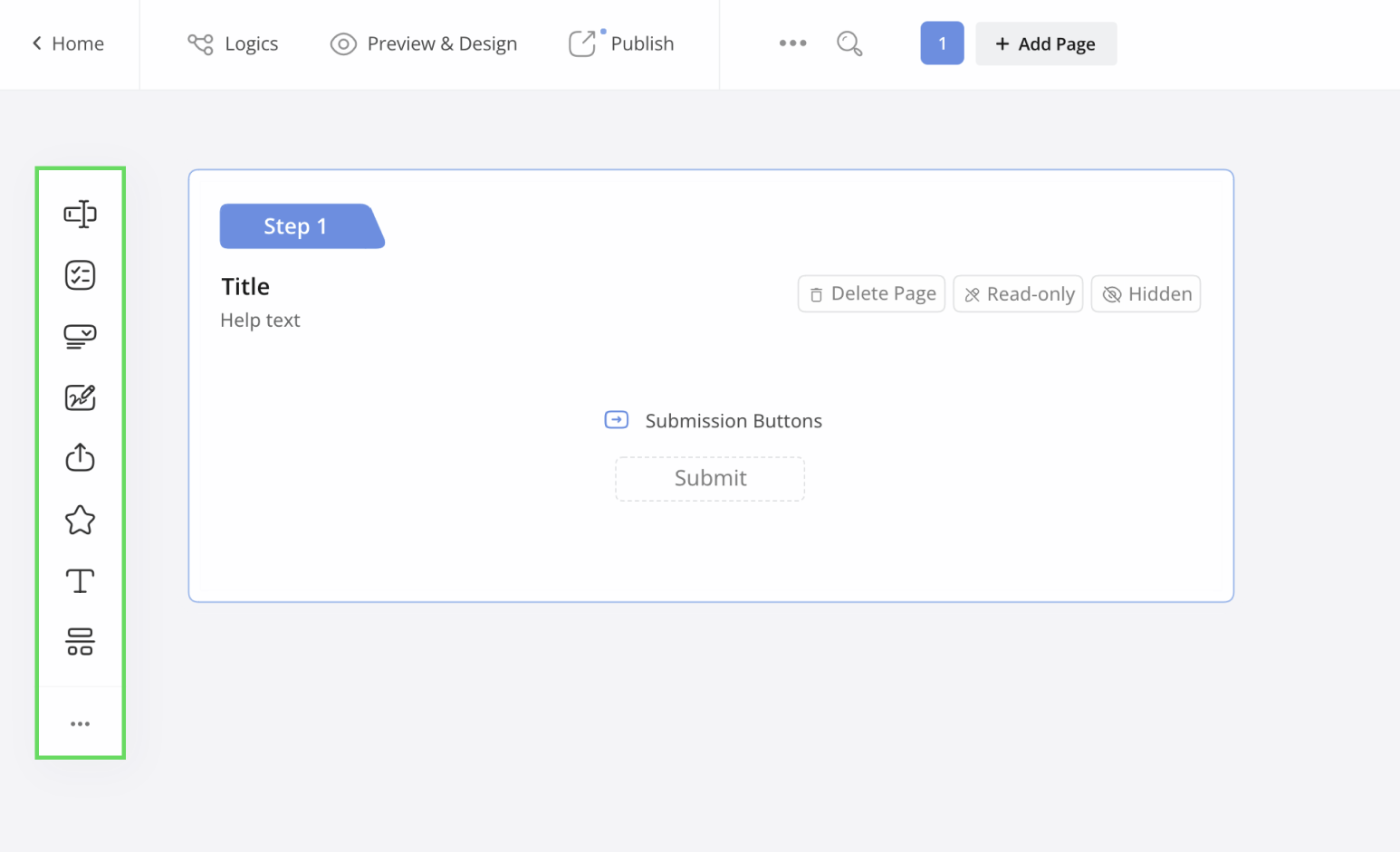
Check every field. Correct its label, format, and required setting where needed. For detailed instructions, see Edit your form and the form field reference.
Changes in the form builder save automatically. Before publishing, check the form yourself instead of relying only on a generated or template layout.
3. Preview and configure the form
-
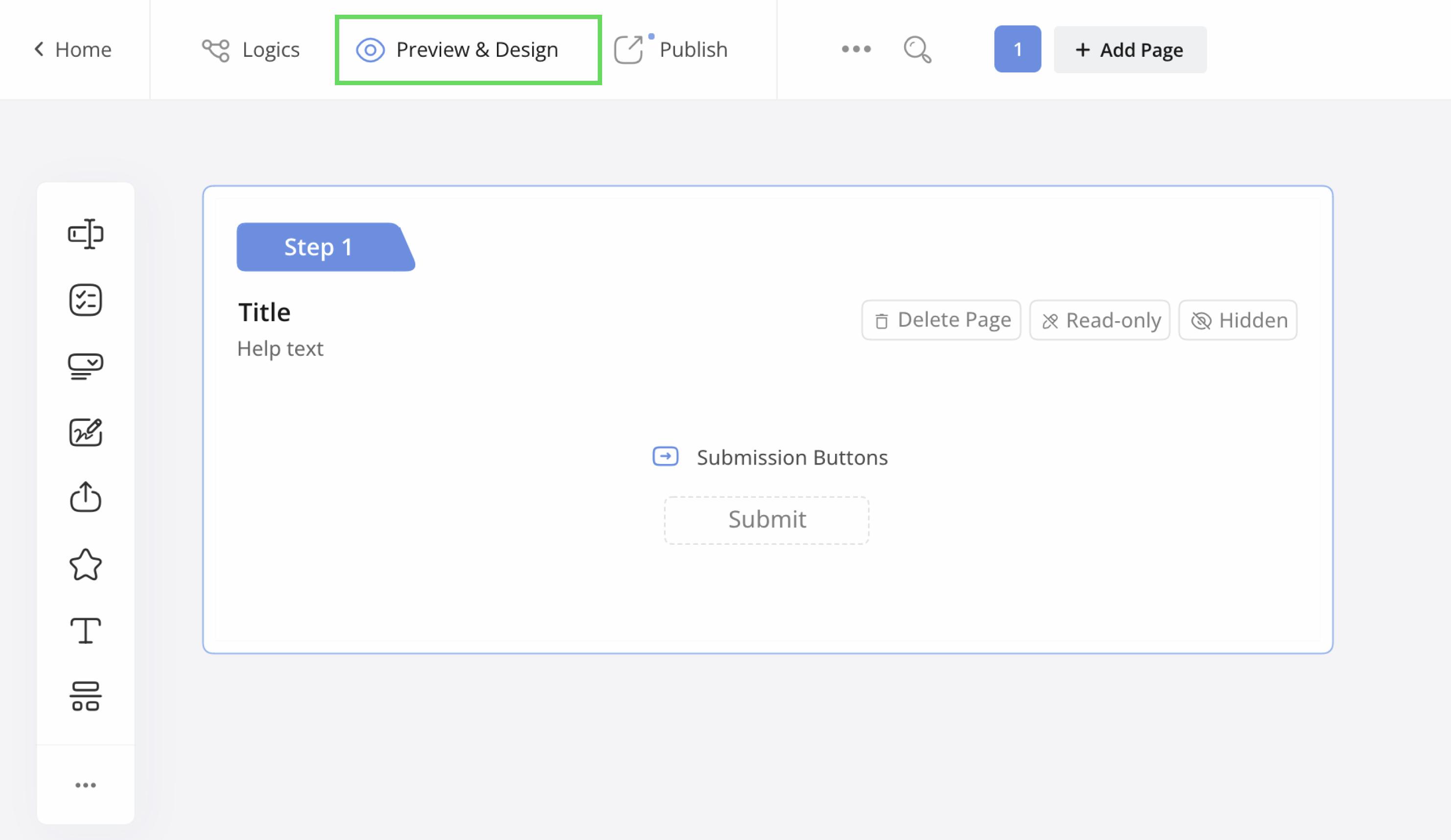
Click Preview & Design in the top-left corner of the form builder.
-
Fill each field as a respondent would. Check field order, required fields, validation, signatures, and the form on both desktop and mobile.
-
If needed, customize the form appearance.
-
Return to the builder, open the ••• menu, and select Manage Form.
-
Review the settings you need—such as the thank-you message, notifications, and languages—then click Save.
See Manage form settings for every available option.
4. Publish and share
In the form builder, click Publish in the top-left corner.
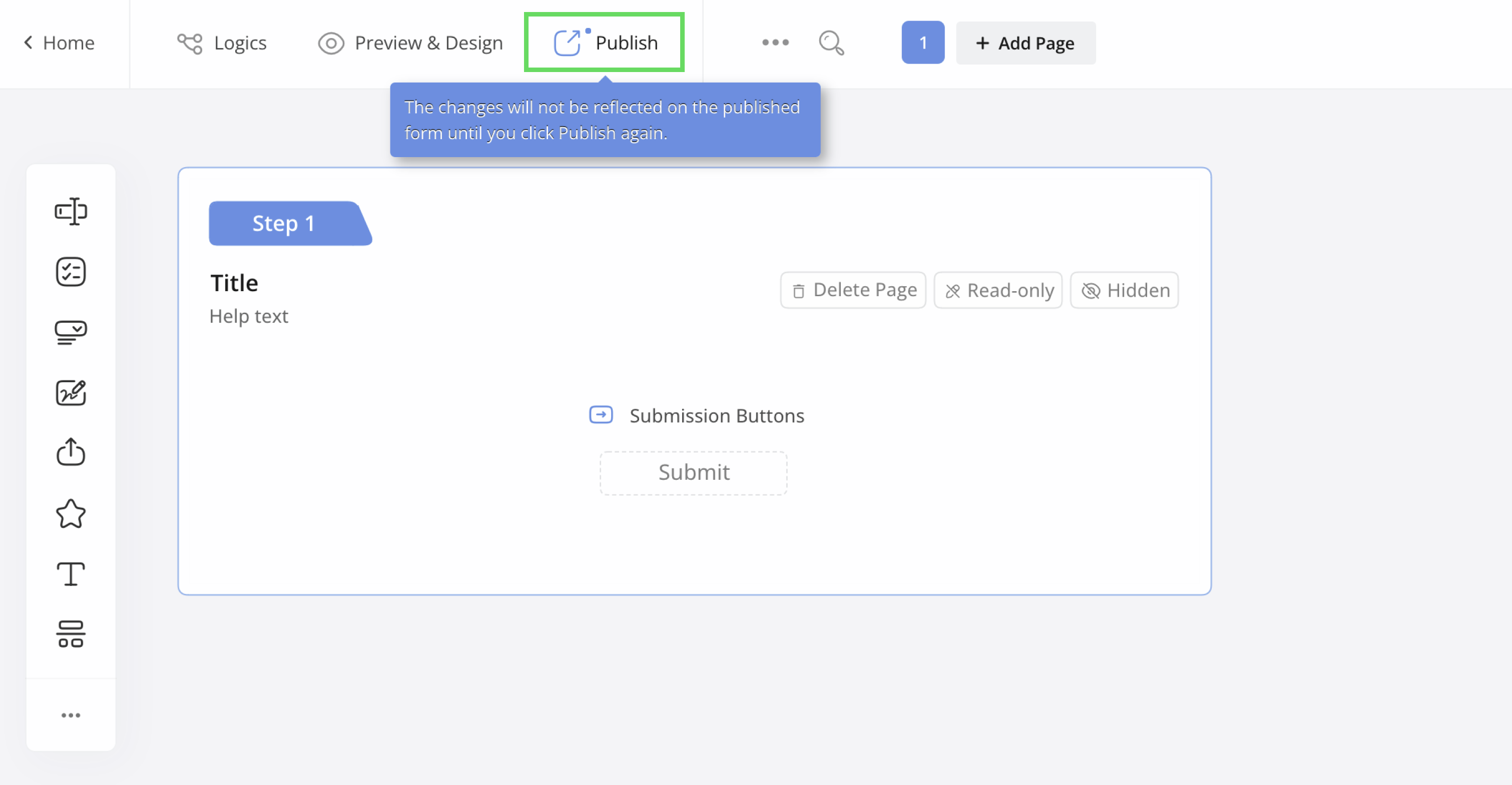
After publishing, choose how to share the form:
- Public URL: Copy a direct link that opens the form in a browser.
- Embed Script: Place the form on your website using a standard embed, modal, floating button, or full-page layout.
- QR code: Let people scan a code to open the form on a mobile device.
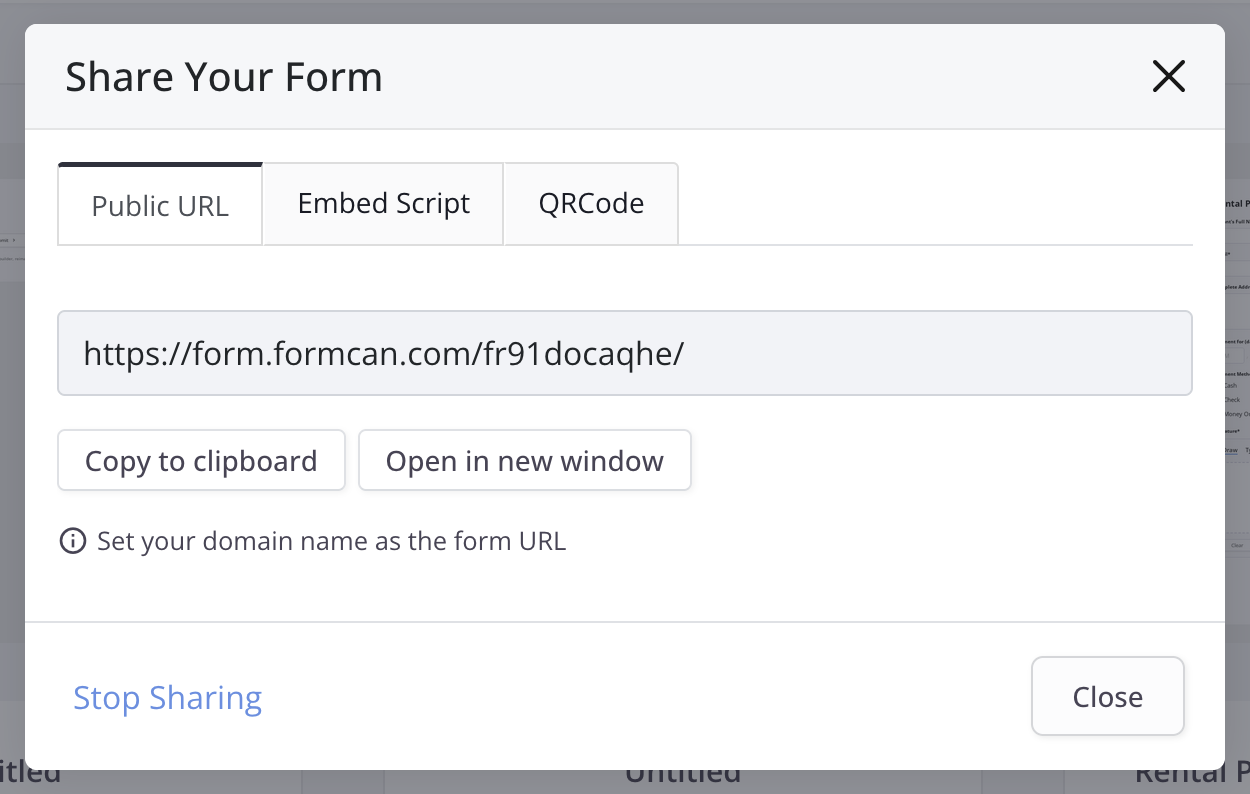
See Publish and share for all sharing options.
5. Submit a test
Before sending the form to other people:
- Open the Public URL in a private or incognito browser window.
- Complete and submit the form with test information.
- In FormCan, open Submissions from the left navigation.
- Find the test submission and open it.
- Confirm that every answer and signature was recorded correctly.
If something is wrong, return to the builder, adjust the fields, and test again. See Manage submissions for submission actions.