
FormCan User Guide
Edit your form
Tabs
This guide walks you through the essential steps to refine the design and features of your online form.
Add fields
To add form fields, click the field icons in the Toolbar.
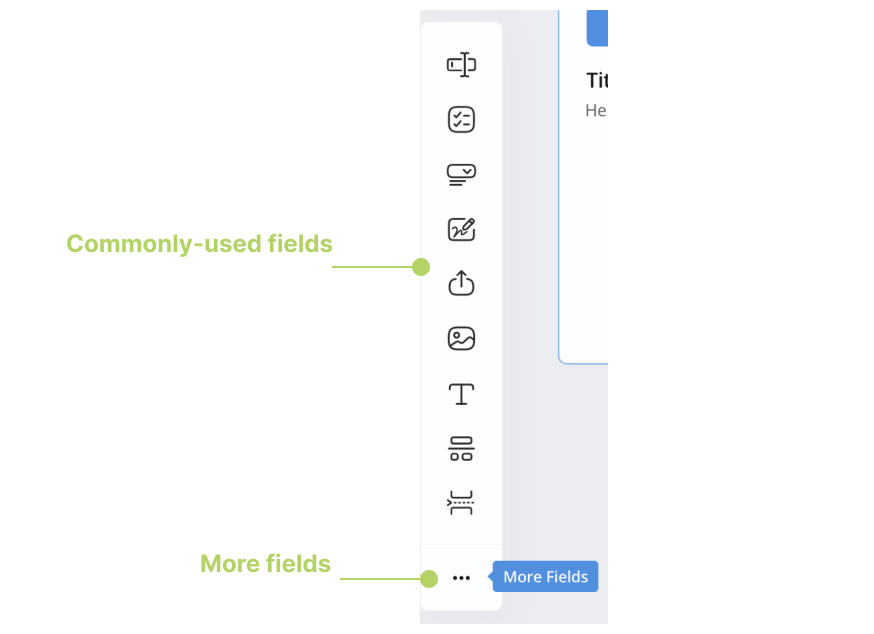
For details on each type, see Field types.
Adjust the fields
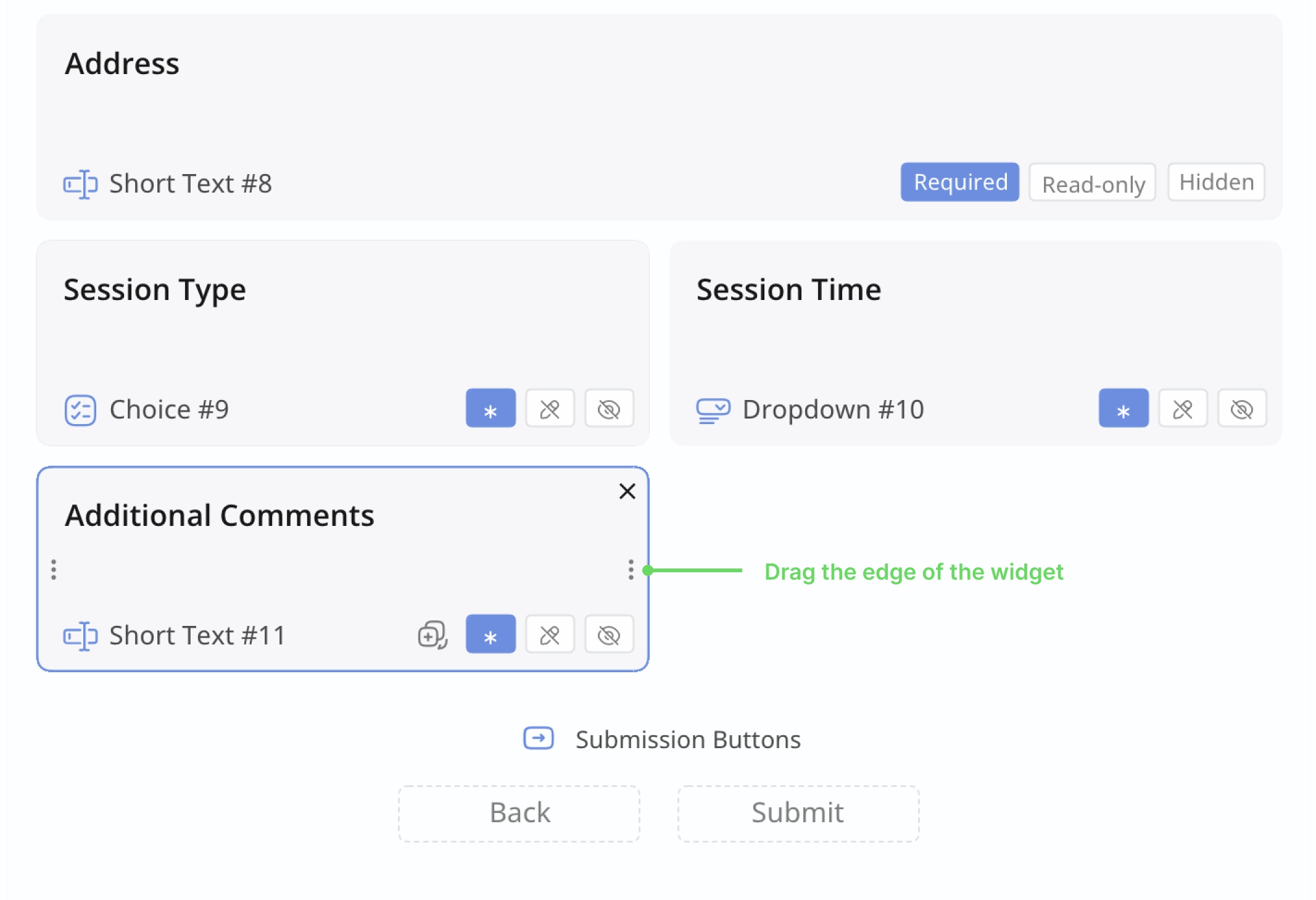
After adding a field to your form, you’ll see its widget in the Field Panel.
-
Drag and drop widgets to rearrange field order. Customize fields by adjusting attributes and settings as needed.
-
Drag the left or right edges of a field widget to adjust its length and position.
Preview your form
To preview your form’s appearance, click the Preview & Design button in the top left corner. Check the Preview your form section for details.
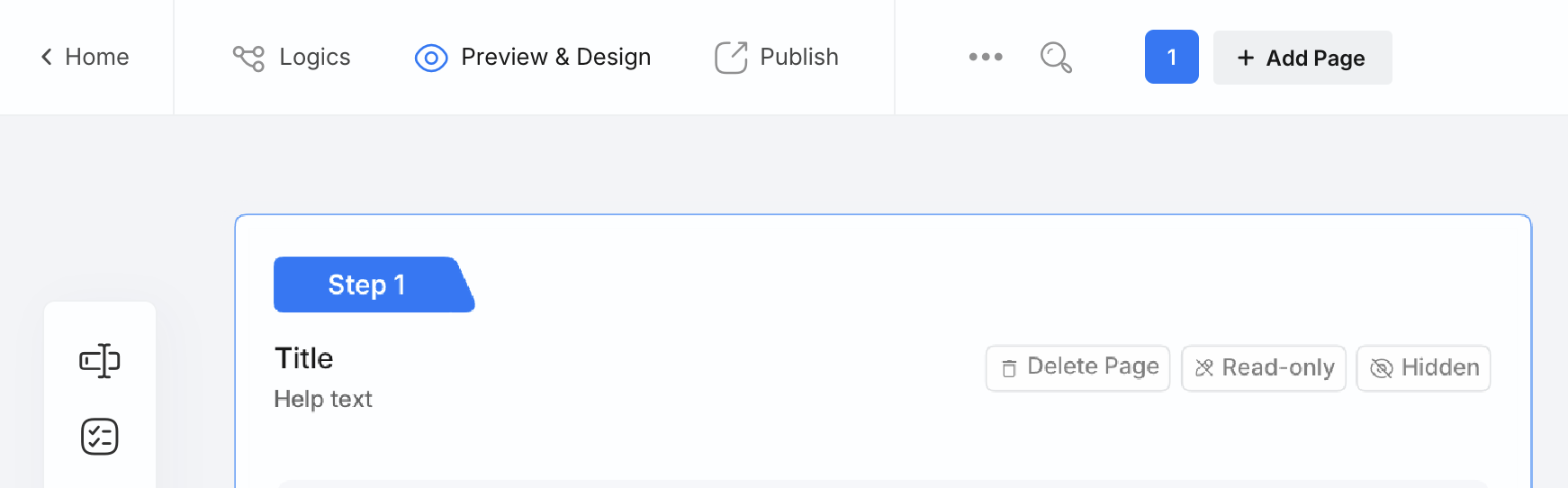
For a more accurate preview, consider adding sample data. Find further information in the Add and preview sample data section.