
AI Form Generator: Create Web Forms with AI
Tabs
The AI Form Generator turns a plain-language description into an editable form. Describe what you need, let AI create the first draft, then keep chatting with the AI Form Assistant to refine the same form instead of starting over.
Start with an idea, not a blank form. Describe the form you need and refine the result in the builder. Try AI Form Generator
What you can do
- Generate a first draft: Describe what you need and let AI create the questions and field structure.
- Keep refining it: Continue the conversation to add, remove, or update fields without starting over.
- Adjust the design: Ask for a visual change, then review the result in Preview & Design.
Create a form with AI
You can start from the Dashboard or from a form you’re already editing. Both options open the AI Form Assistant, where you can generate and refine your form in the same chat.
Start from the Dashboard
-
On the Dashboard, click Start to Build.
-
Under Web Form, choose Start with AI chat.
Start from the form builder
-
Open a form in the builder.
-
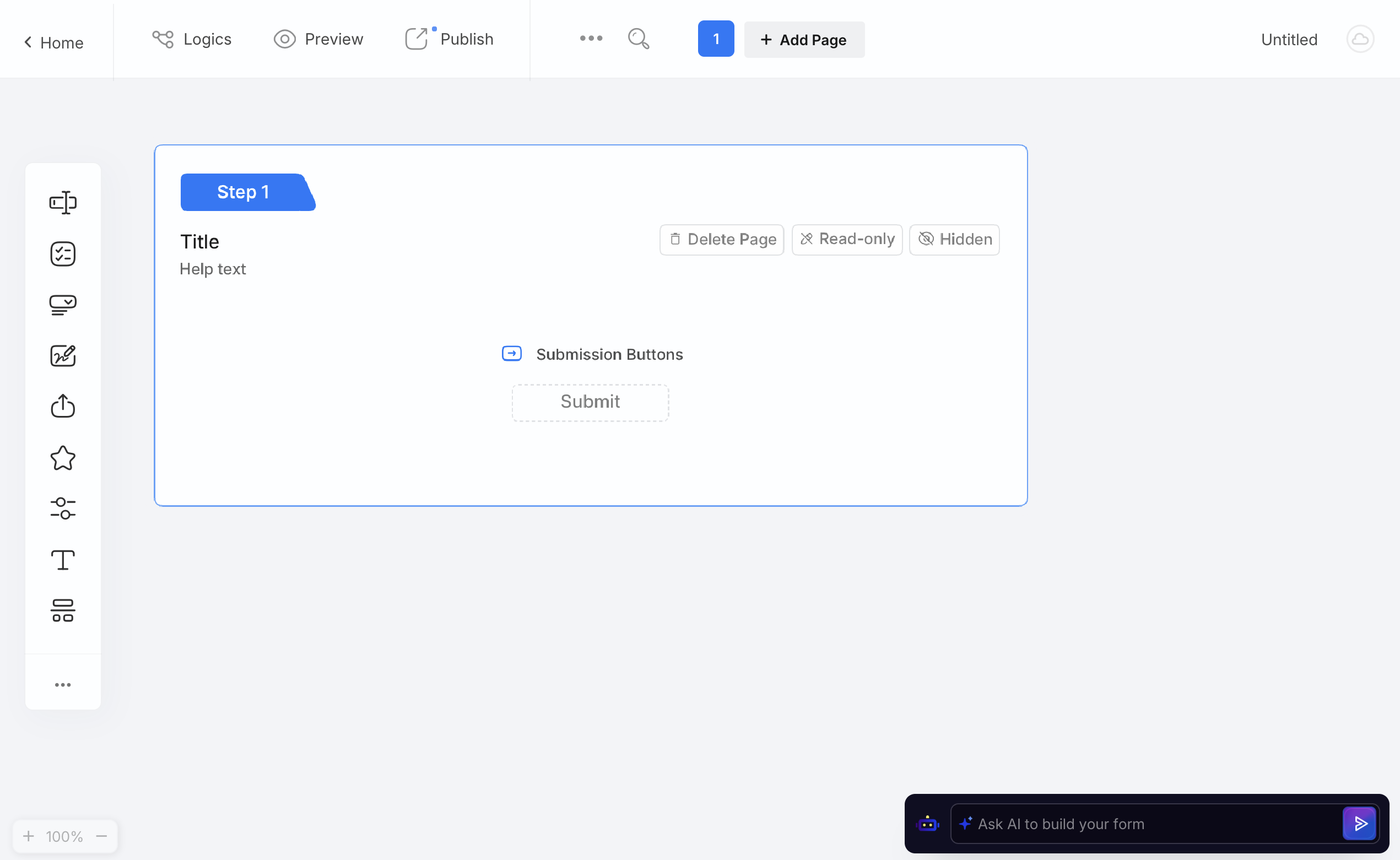
Click Ask AI to build your form at the bottom of the page.
Generate your form
Whichever way you start, describe the form you want to create in plain language.
Include the purpose of the form and the information you want to collect. You can also mention specific questions or fields you already know you need.
Try this prompt:
Create a [type of form] for [purpose]. Include fields for [information you want to collect].
Follow the prompts from the AI Form Assistant. Once the form is generated, FormCan opens a live preview where you can review the form and continue working with the assistant.
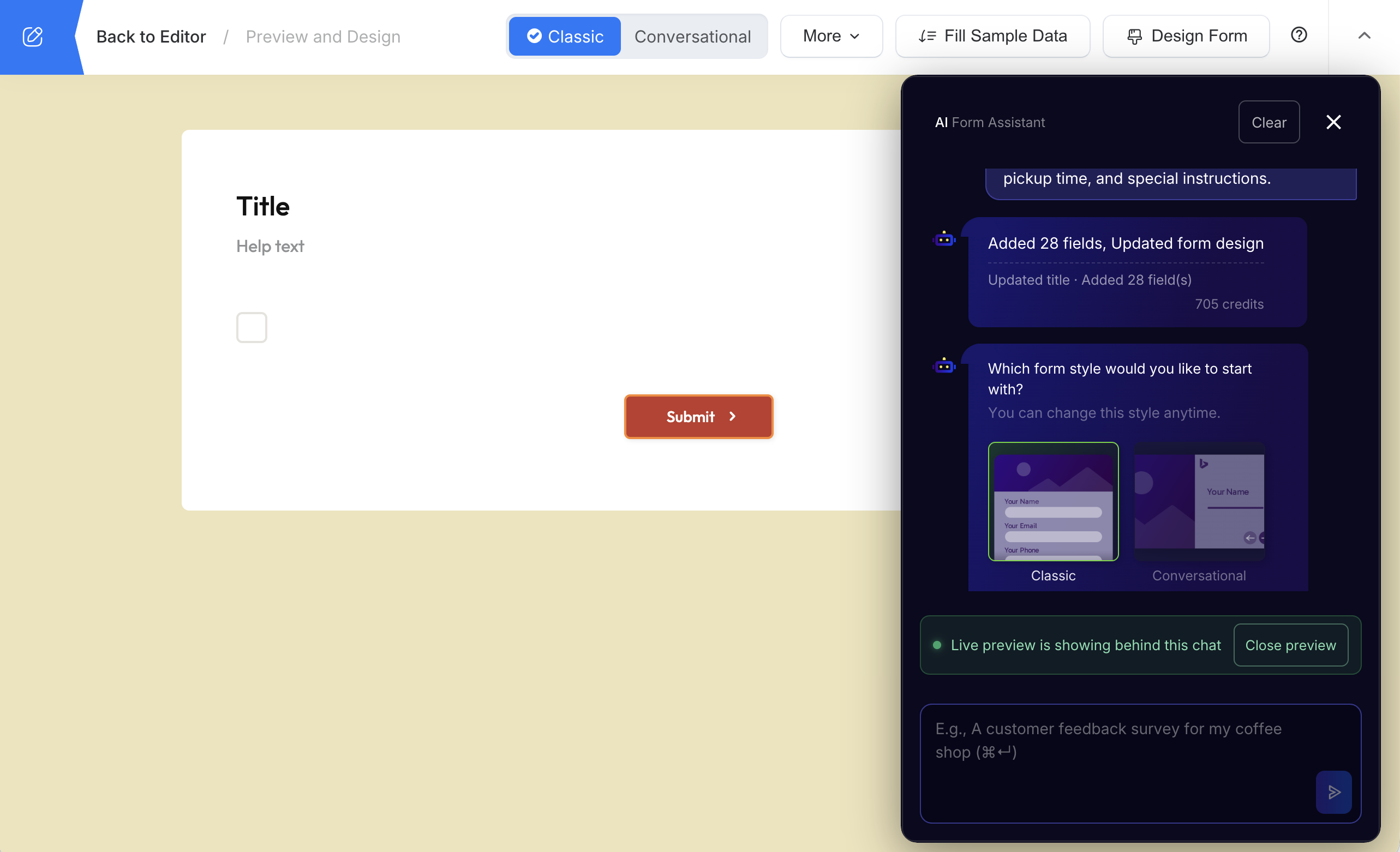
Review the generated fields and choose Classic or Conversational for the initial form layout.
Refine your form with AI
The first draft doesn’t have to be final. Keep using the same AI Form Assistant chat to add, remove, or update fields and change the form’s design.
For example:
Remove the phone number field.
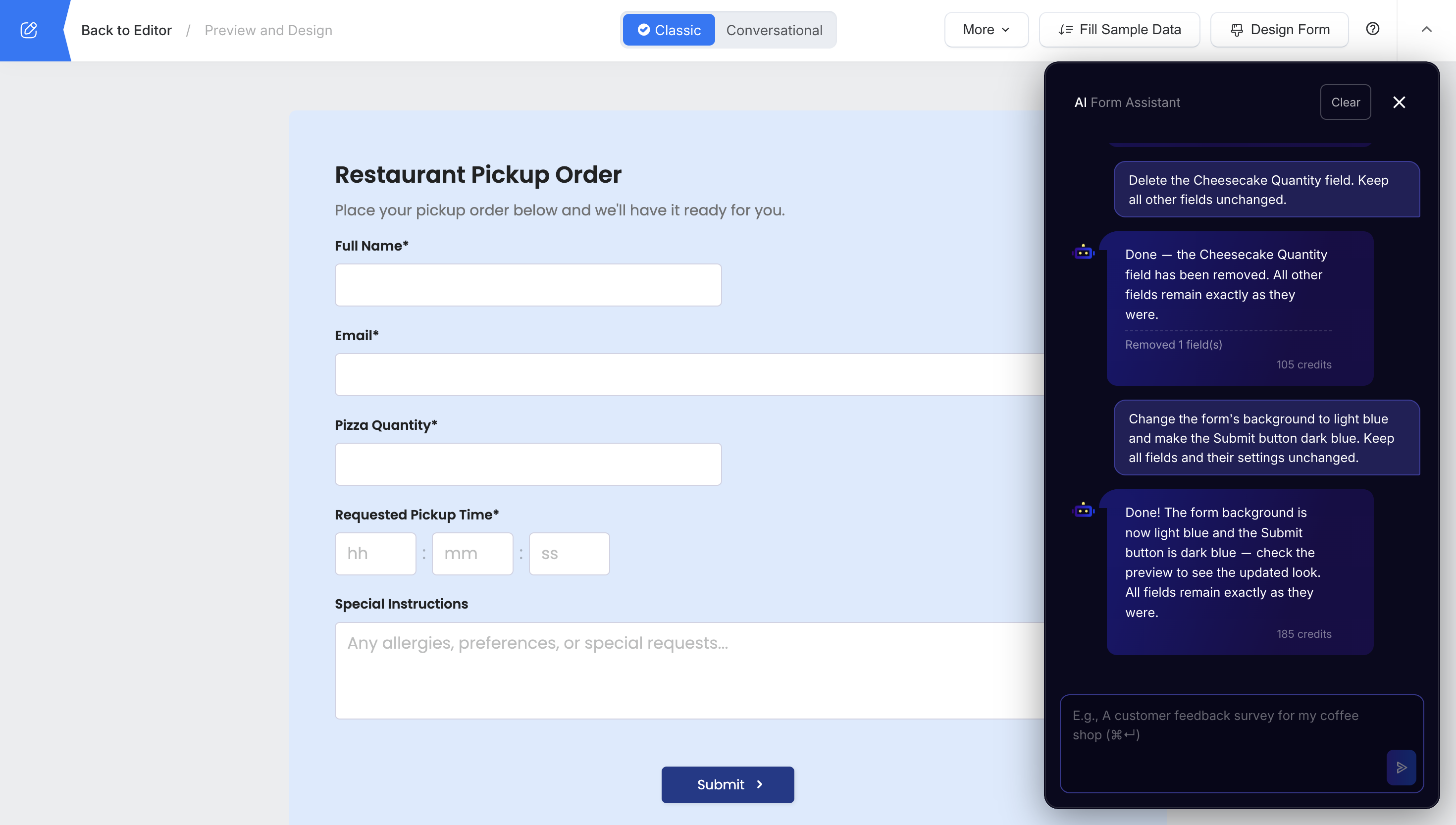
The assistant summarizes the changes it makes so you can inspect the result in the live preview.
When you ask the assistant to change the form’s design, Preview & Design opens automatically so you can review the updated appearance.
Always review the generated fields, settings, and preview before publishing. If a requested change does not appear as expected, you can make the change manually in the builder.
Choose how respondents see the form
Forms support two presentation styles:
| Style | How it looks |
|---|---|
| Classic | Shows multiple questions together in a traditional form layout. |
| Conversational | Guides respondents through the form one question at a time. |
You can switch between Classic and Conversational layouts after creation without rebuilding the form.
Example AI form prompts
You don’t need a long or technical prompt. A useful prompt usually tells the assistant:
- What the form is for
- Who will fill it out
- What information you need to collect
- Any specific questions or fields you already need
Generate a form
Describe the form you want and the information it should collect.
Create a restaurant pickup order form with customer contact details, menu quantities, pickup time, and special instructions.
Refine the fields
Ask for focused changes while keeping the rest of the form as it is.
Delete the Cheesecake Quantity field. Keep all other fields unchanged.
Change the design
You can also ask the AI Form Assistant to update the form’s appearance.
Change the form's background to light blue and make the Submit button dark blue.
Specific follow-up requests make it easier to review exactly what changed.